
How to Use Breakout Rooms
Splitting a meeting into smaller groups, and bringing everyone back.
A breakout room is a smaller, private conversation that runs alongside the main meeting: a negotiation caucus, a team huddle, a quick word with one person. Hosts can send anyone to a breakout; attendees can invite others to join them in one.
The room needs Breakout Rooms turned on in its features (see How to Create a Meeting Room). In a webinar, only the speakers can use breakout rooms; viewers cannot.
1. Send People to a Breakout (Hosts)
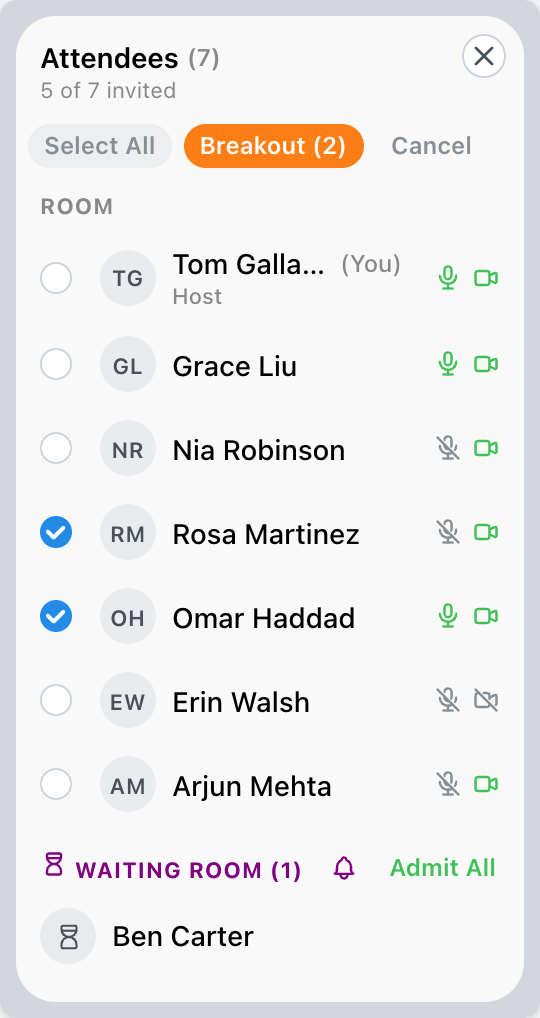
In the attendee list, click Breakout on the Room line. Tick the people to send, then click Breakout (2) (the number is how many you ticked). They move straight into a new breakout, named Breakout 1, Breakout 2 and so on. Tick yourself too if you are going with them. Cancel backs out.
Once a breakout exists, the same button lets you add people to it, or start a New Breakout. The Breakout tile on someone's card opens the same choice with that person already ticked.
2. Keep Track of Breakouts
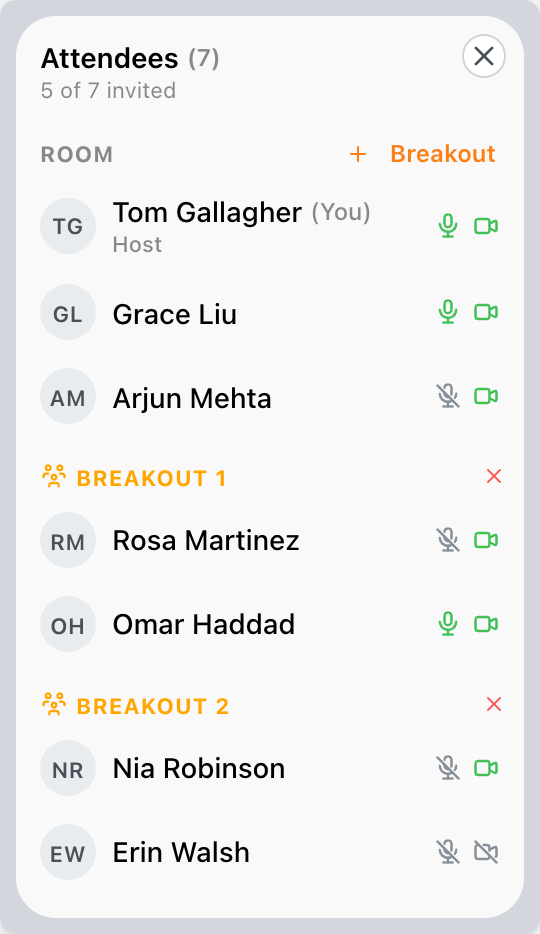
Each breakout is listed under its own name in the attendee list, with the people in it. From there a host can:
- Click someone in a breakout and choose Return to Main Room to bring just them back.
- Click the X beside a breakout's name (End Breakout) to close it and bring everyone in it back.
Either way, the people coming back see Returning to Main Room with a five-second countdown first, so nobody is cut off mid-sentence without warning.
3. Invite Others to a Breakout (Attendees)
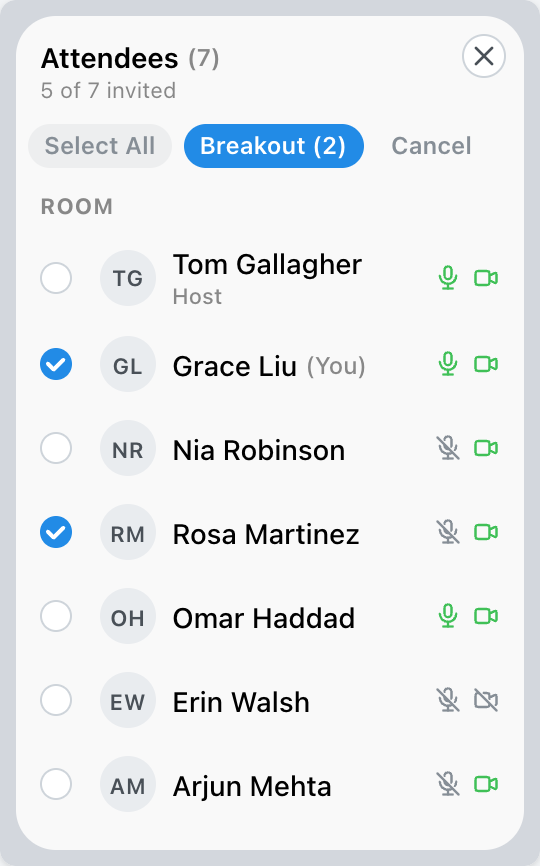
Attendees can start a breakout too, but by invitation. Click Breakout in the attendee list (or the Breakout tile on someone's card), tick the people to invite, and click Breakout (2); you are ticked already. Each person invited sees [Your name] wants to start a breakout room with you and chooses Accept or Decline. Those who accept join you in the breakout.
4. Inside a Breakout
A breakout is a separate conversation: the people in it see and hear only each other, and the main meeting carries on without them. The room chat inside a breakout goes only to the people in that breakout.
Anyone can leave a breakout at any time with Return to Main Room in the room header.

Tips
Explore MegaMeeting