
How to Set Up Your Branding
Your logo, browser icon and colors on every meeting, webinar and invitation.
Branding replaces MegaMeeting's look with your own for everyone you meet with. It takes a few minutes in Settings, and every room on your account uses it from then on. The examples here use a sample brand, Harmony Mediation Group.
1. Open Settings, Branding
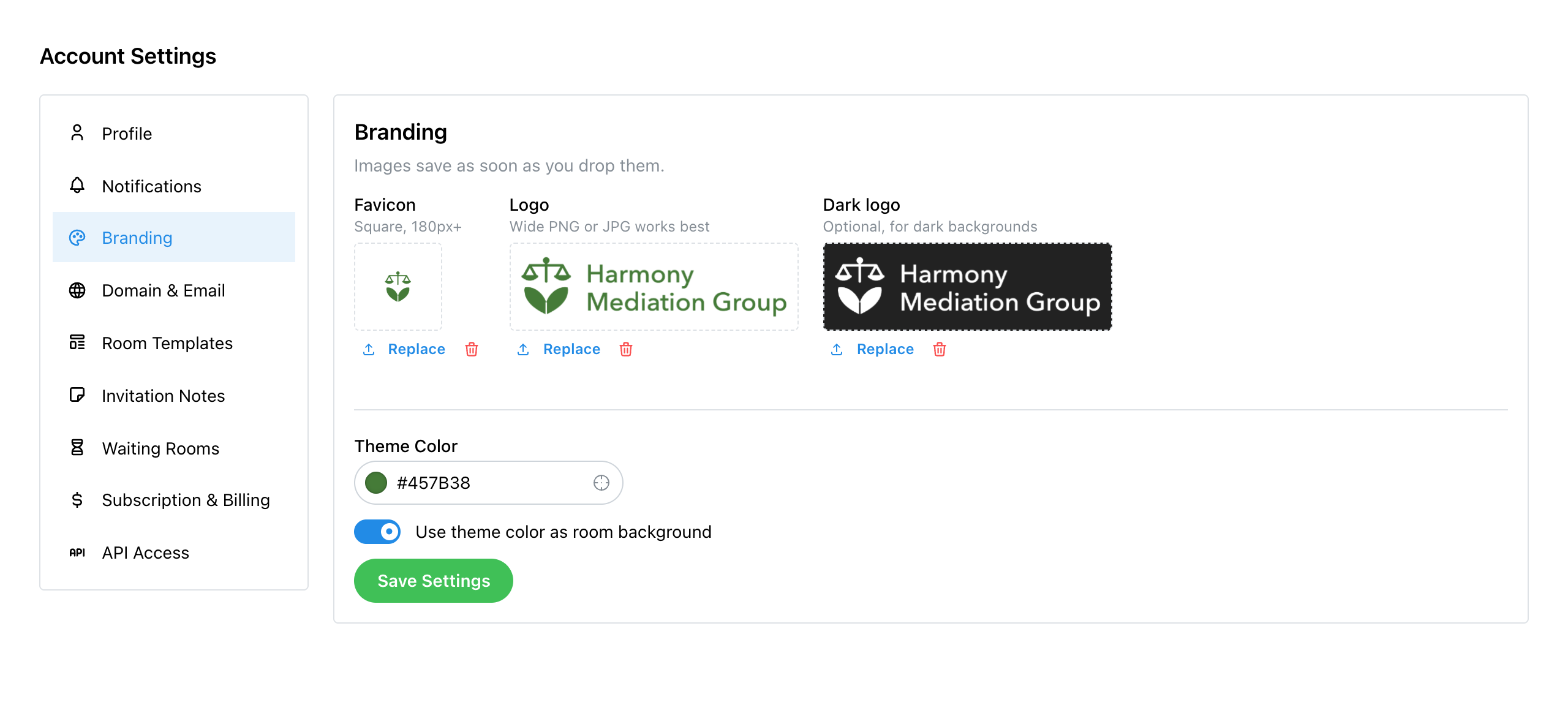
Click Settings in the sidebar, then Branding in the list that opens under it. The section has a row for each of your three images, and your colors below them.
2. Add Your Logo and Browser Icon
Drag a file onto a tile, or click the tile or Upload beside it to choose one. Images save as soon as you drop them; there is nothing else to click. Once an image is in, Replace swaps it and Remove takes it away.
- Logo: your main logo, shown on light backgrounds. A wide PNG or JPG works best. Any blank margin around it is trimmed off automatically, and it is resized to fit.
- Dark logo: optional, for dark backgrounds: when someone uses MegaMeeting in dark mode, and on the room header when your theme color is the room background (step 3). Without one, your logo is shown there as a white silhouette.
- Favicon: the small icon in the browser tab. It must be square, at least 180 pixels on a side. PNG, JPG, WebP, GIF and ICO files all work.
3. Choose Your Theme Color
Under Theme Color, pick your brand color, or type its hex code (for example #457B38). Once a color is set, a switch appears: Use theme color as room background. Turned on, it paints the whole room frame in your color: the header across the top and the space around the video, with the header's buttons and text in a color that contrasts with it.
Click Save Branding. Unlike the images, the color and the switch are saved only when you click it.
4. What Your Attendees See
This is a Harmony Mediation Group meeting with the switch on:
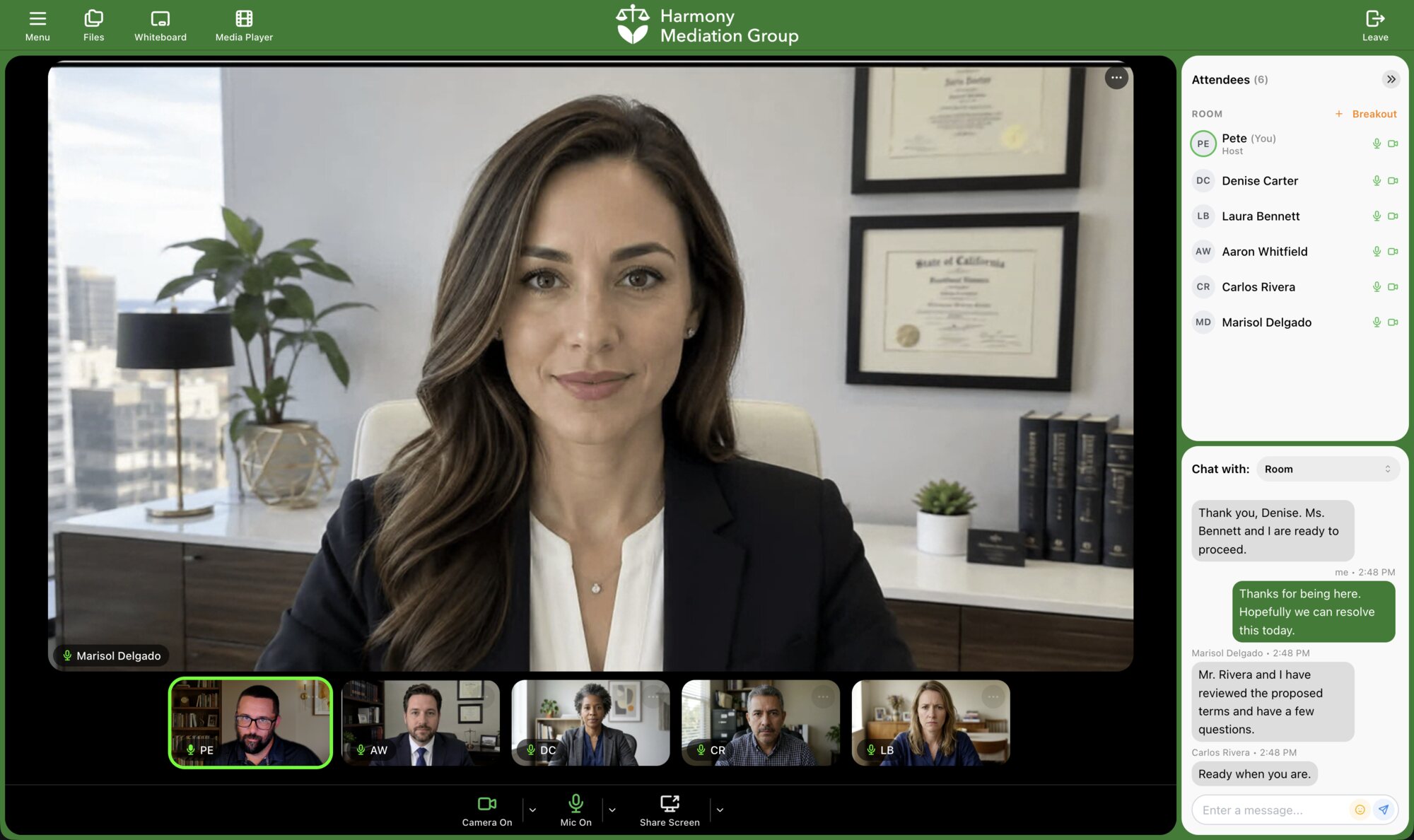
Your branding shows:
- In the room and the waiting room: for every attendee, from the moment they arrive, whichever link they used.
- In invitations and webinar reminders: your company name, logo and theme color.
- On webinar registration pages: your logo and color.
- On your own dashboard when you sign in.
Checklist
- Is the logo tightly cropped, on a transparent background?
- Is there a dark logo, if your logo relies on color?
- Is the favicon square?
- Is the theme color set, and did you click Save Settings?
- Have you joined one of your own rooms to see how it looks?
Explore MegaMeeting