
How to Use Your Own Domain and Sender Email
Host your meetings at your company's address and send invitations from your company's email.
Out of the box, your account lives at a MegaMeeting address and invitations come from a MegaMeeting email address. This guide moves both to your company: meetings at an address such as meeting.yourcompany.com, and invitations from an address such as invite@yourcompany.com.
It takes four short steps in MegaMeeting, plus adding four records at whoever manages your domain's DNS. If that is not you, it helps to have that person on hand for step 3.
Do your branding first or after, whichever you like. Your own address is what makes it show from the very first screen.
1. Open Settings, Domain & Email
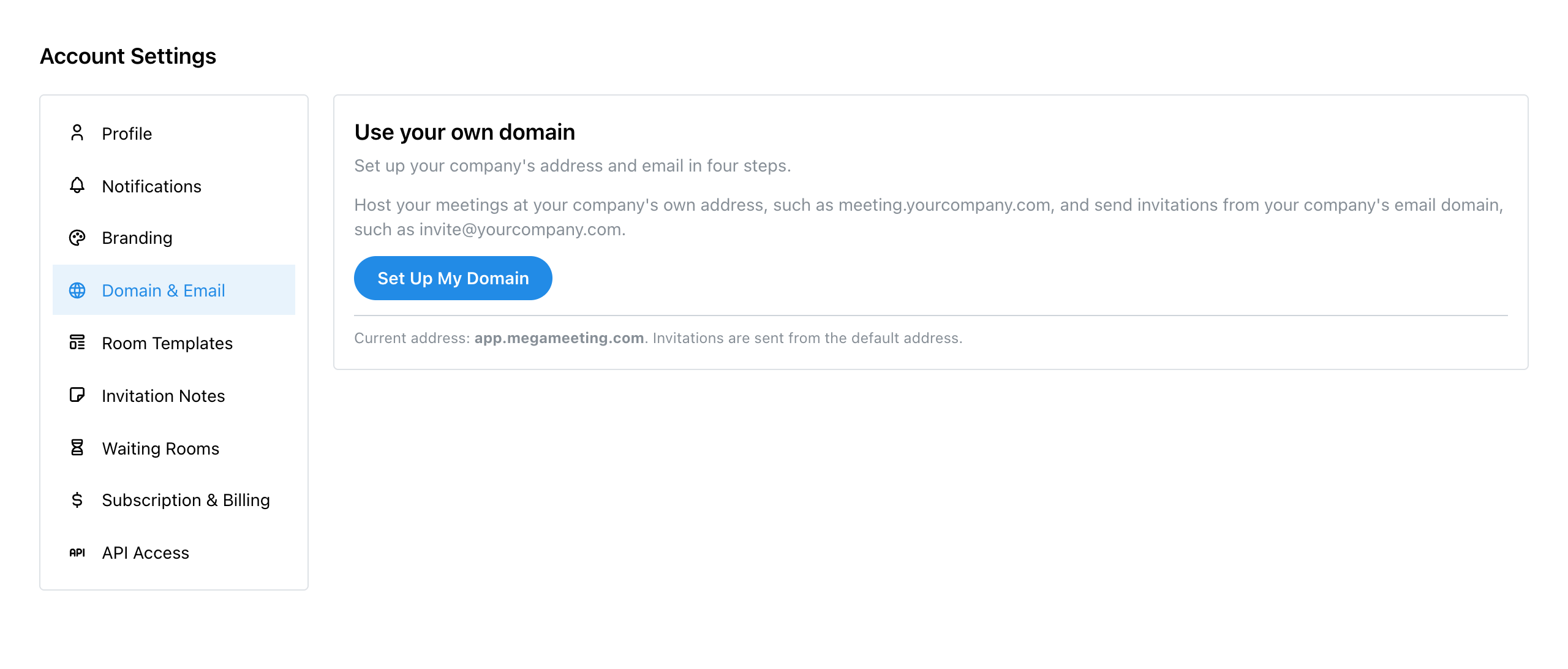
Click Settings in the sidebar, then Domain & Email. Under Use your own domain you see the address your account is on now, and the address your invitations are sent from. Click Set Up My Domain.
2. Enter Your Domain
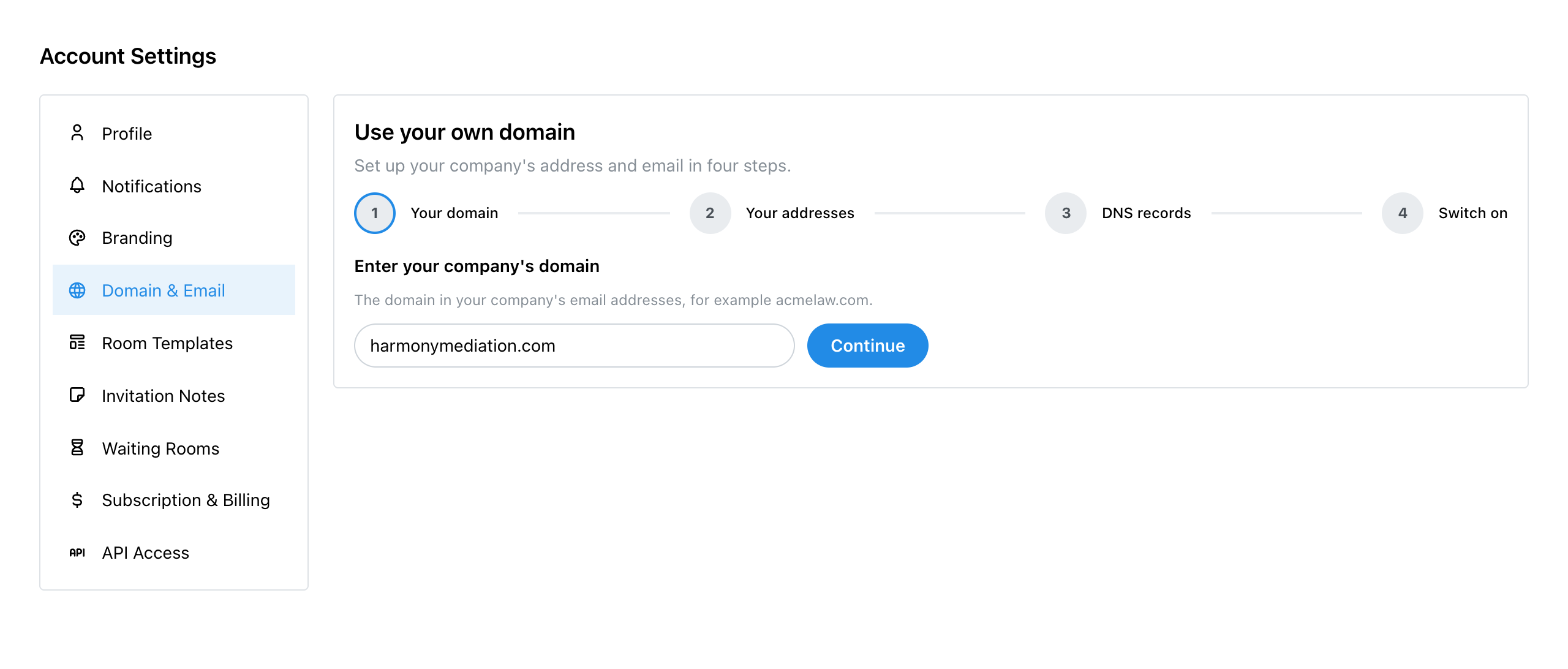
Type the domain from your company's email addresses, without www or anything before it (for example harmonymediation.com), and click Continue.
MegaMeeting checks it straight away. If the domain is already set up with MegaMeeting under another account, you are offered Ask Support to Add It instead.
3. Choose Your Web Address and Sender
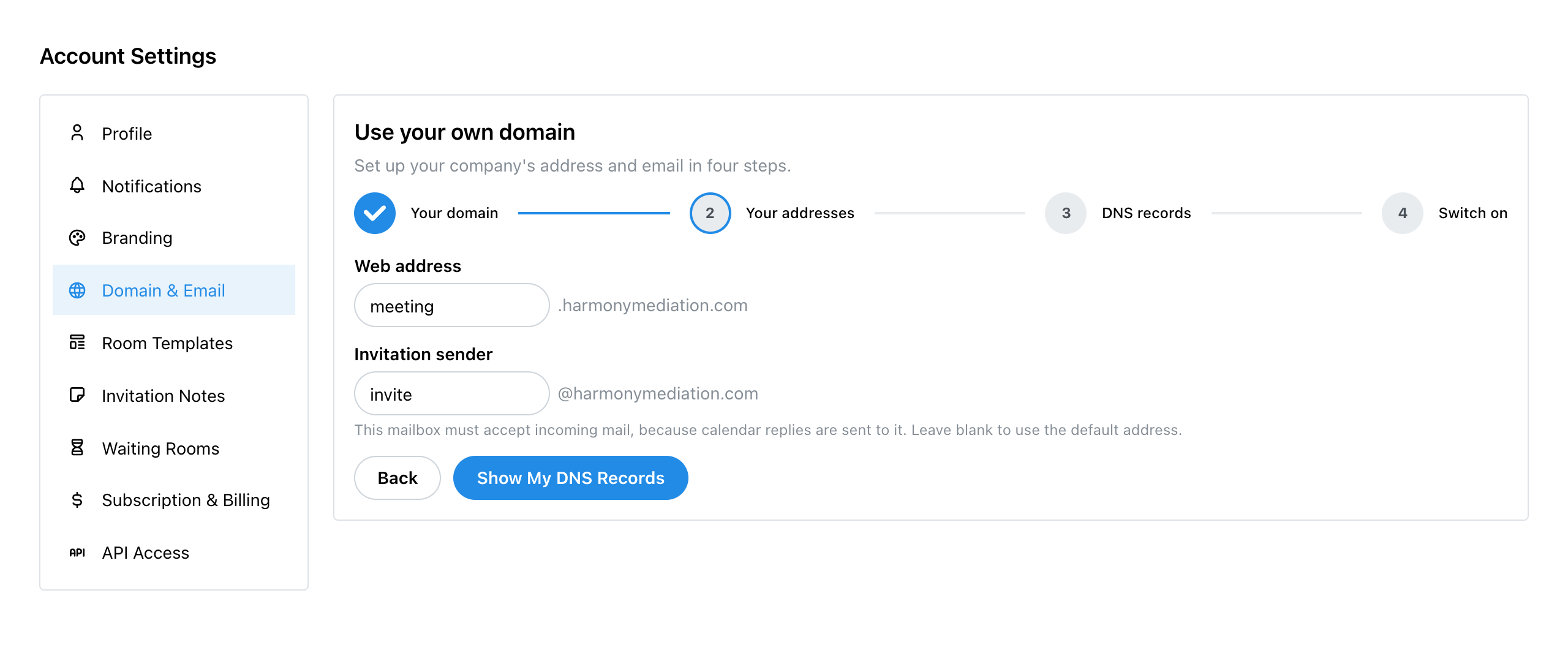
- Web address: where your account will live. It is a name in front of your domain; meeting is filled in for you, so the address is meeting.harmonymediation.com.
- Invitation sender: the address invitations come from, filled in as invite. Leave it blank to keep sending from the default address.
Click Show My DNS Records.
4. Add the DNS Records
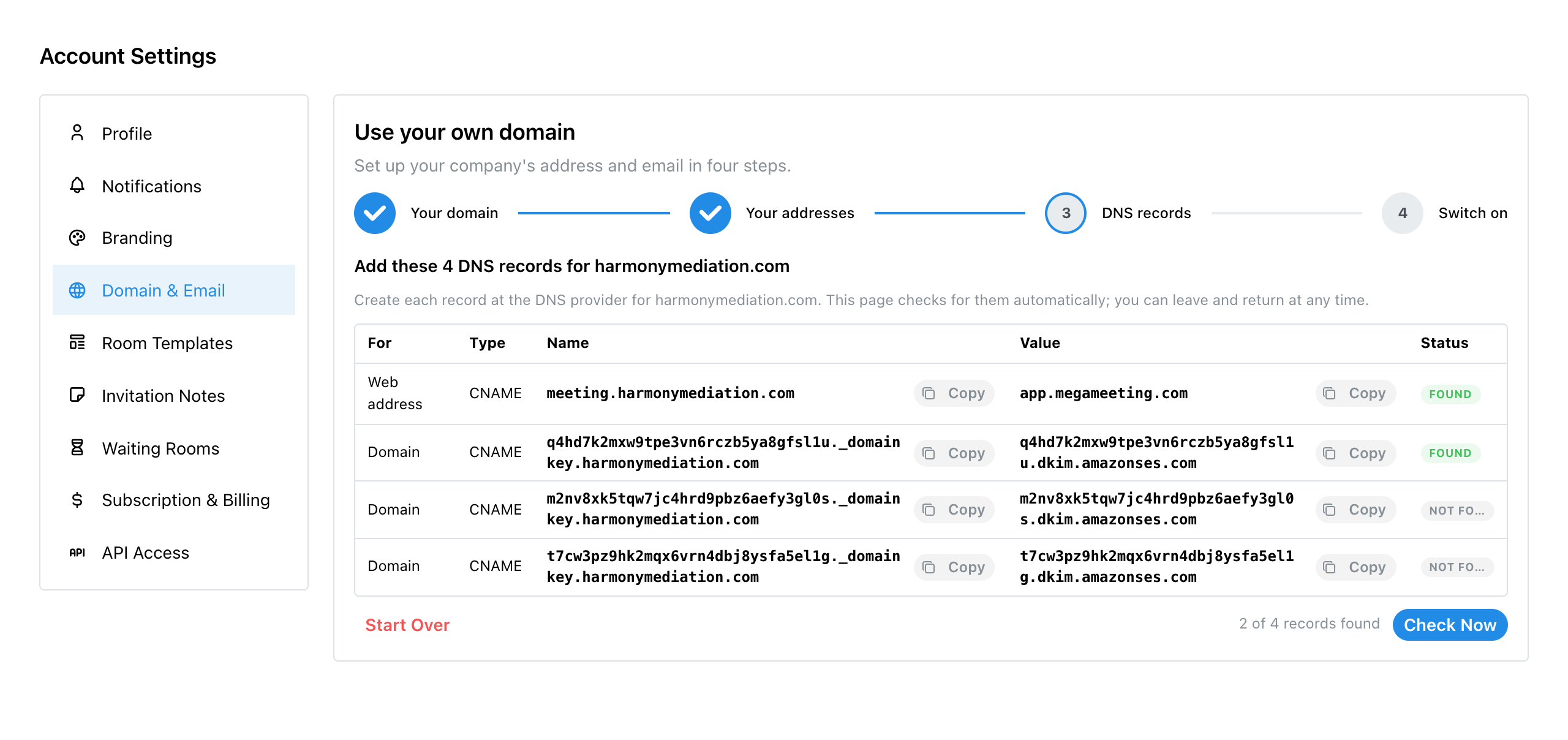
MegaMeeting lists four records to add at your DNS provider. All four are CNAME records, and each name and value has a Copy button:
- Web address (one record): points your new address at your account.
- Domain (three records): let email providers confirm that MegaMeeting may send invitations for your domain, so they are delivered rather than marked as spam.
The page checks for the records straight away and then every 30 seconds, and each one turns Found as it appears. Check Now checks immediately. You can leave and come back at any time; the setup picks up where it left off. Once all four are found and the domain is verified, it moves on by itself.
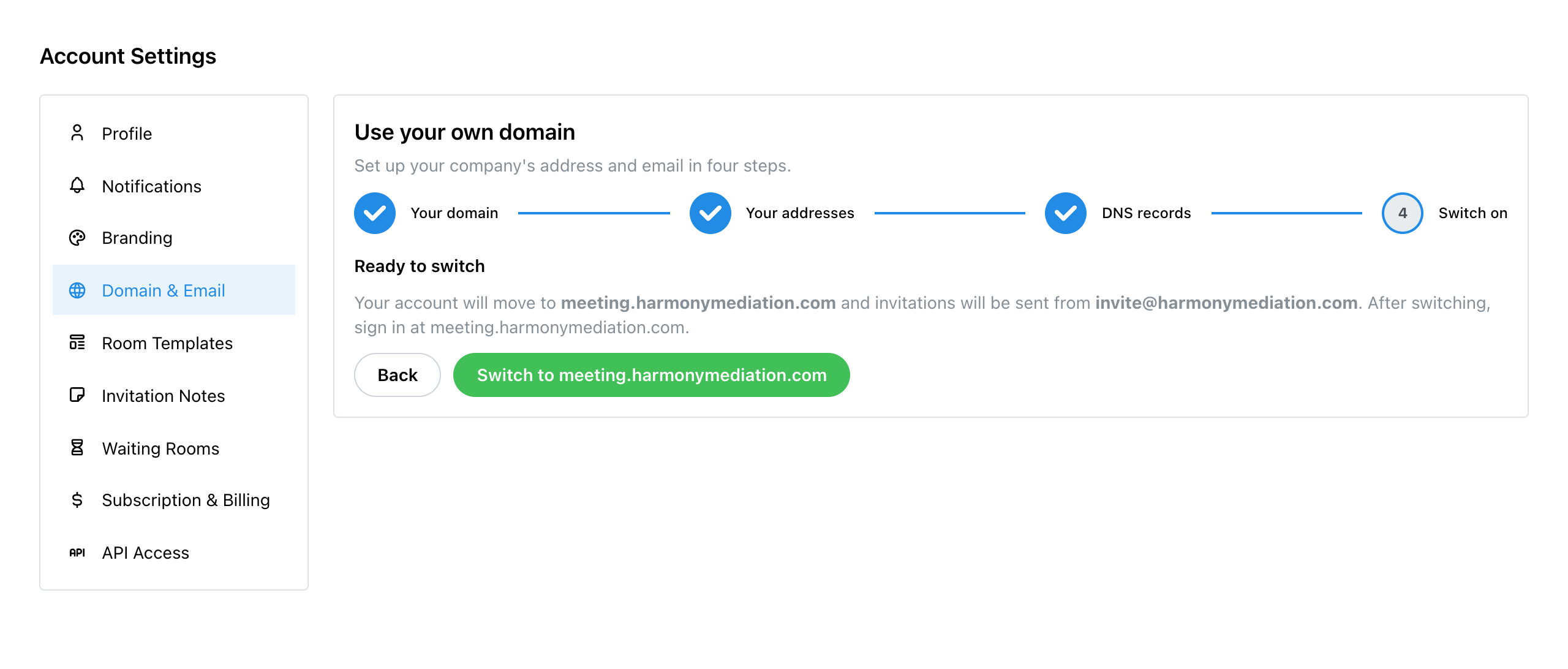
5. Switch On
The last step says where your account is moving and which address invitations will come from. Click Switch to your new address. MegaMeeting moves you there, and from then on you sign in at your new address.
If your own computer cannot reach the new address yet, because the DNS change has not reached your network, you are told so and offered Try Again or Switch Anyway. Waiting a few minutes and trying again is usually all it takes.
Checklist
- Is the domain the one in your company's email addresses?
- Does the sender address reach a real mailbox?
- Are all four records added, with names your DNS provider will not double up?
- Have you switched on, and signed in at the new address?
- Have you re-sent invitations for upcoming meetings?
Explore MegaMeeting