
How to Set Up Waiting Rooms
What guests see while they wait to be let in, and how to admit them.
A waiting room holds people until a host lets them in. You choose what they see while they wait: your own heading and message, the meeting's start time, a background, and a playlist of videos. There are four parts to it:
- Design waiting room screens, called templates, in Settings.
- Choose which screen each room uses.
- Admit people from inside the room.
- Get an alert when people are waiting and no host is there.
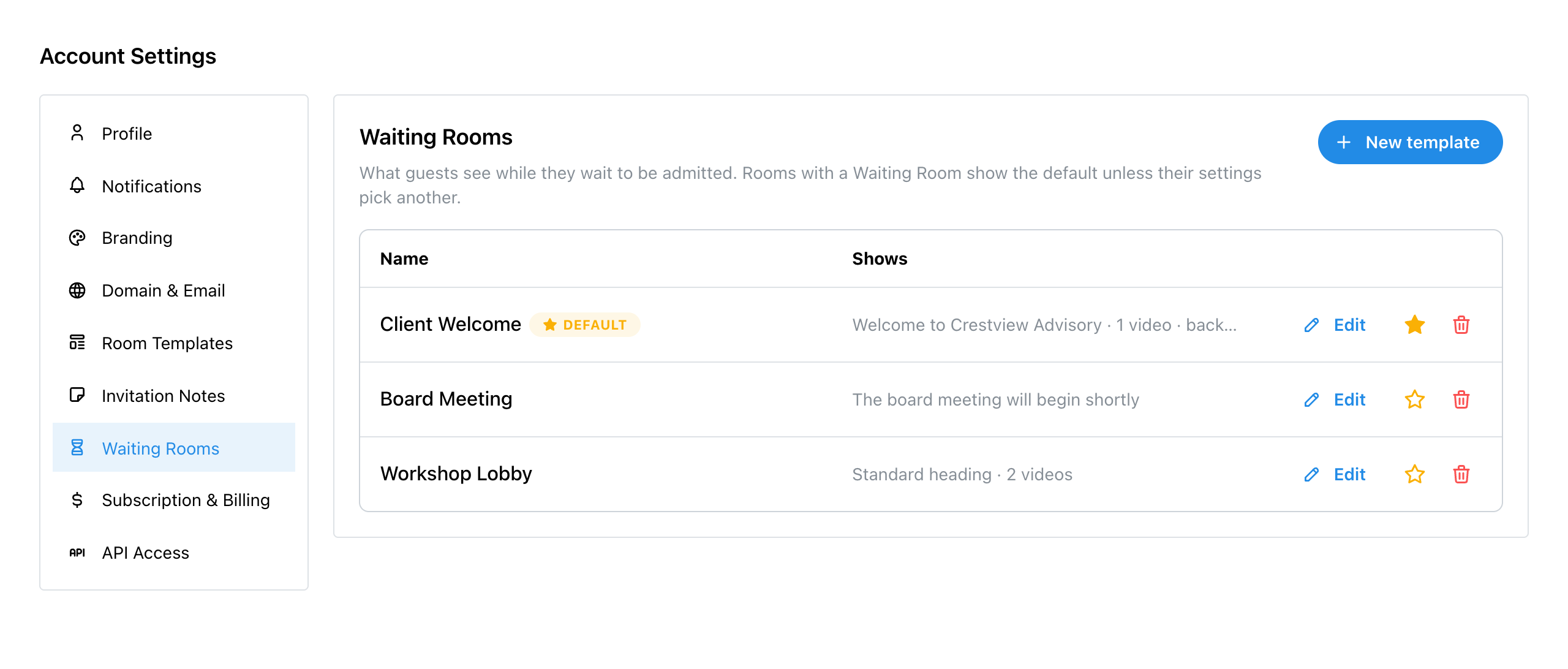
1. Open Settings, Waiting Rooms
Click Settings in the sidebar, then Waiting Rooms. Each template is listed with a summary of what it shows. Click a template to select it, then use the bar that appears at the bottom: Edit opens it, Make Default makes it your default (step 6), and Delete removes it. You can keep up to 20.
With no templates at all, rooms show the standard waiting room: the heading You're in the Waiting Room and a message saying the host will admit them shortly.
2. Create a Template and Write the Words
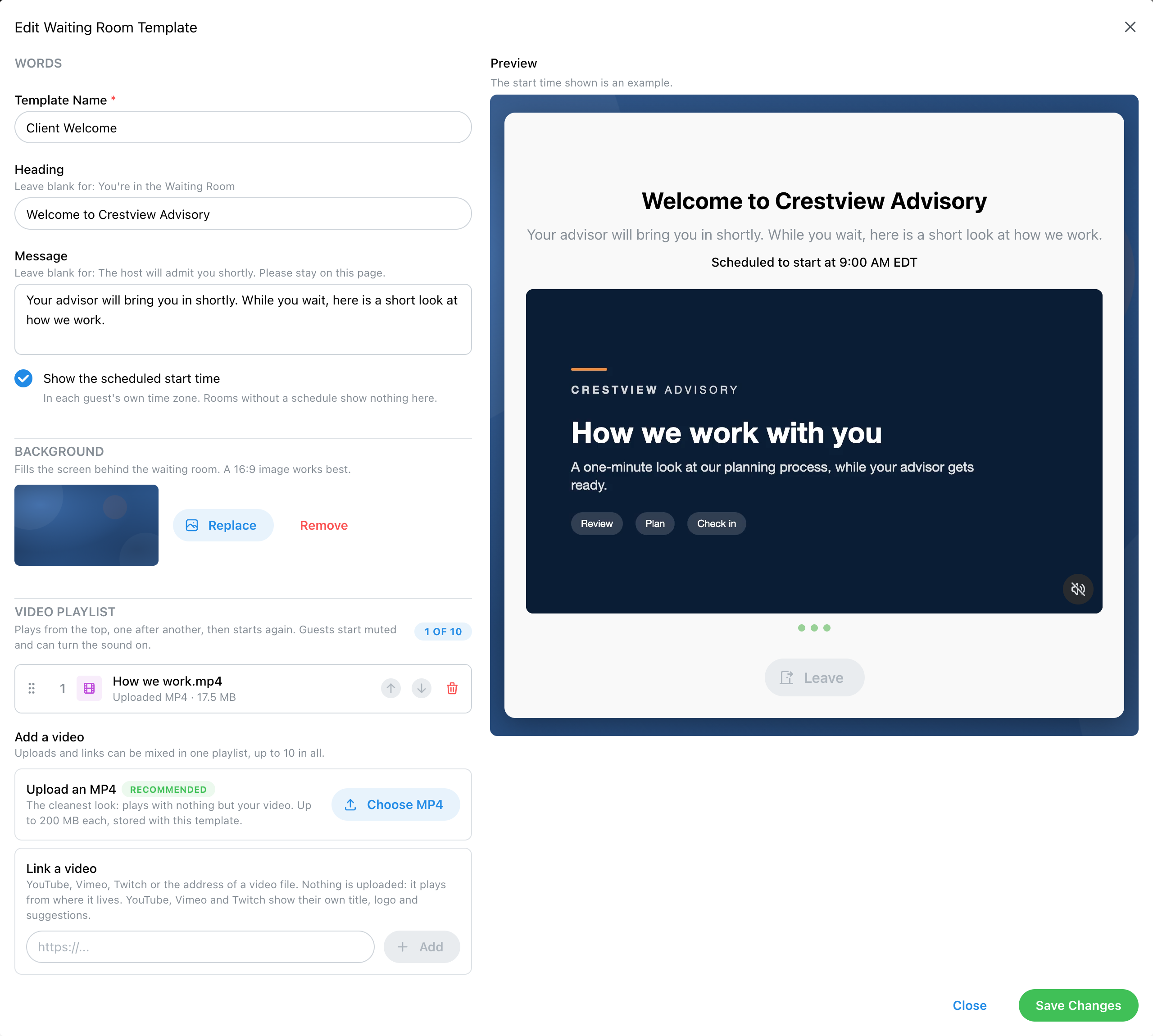
Click New Template and fill in:
- Template Name: for you; guests never see it.
- Heading and Message: what guests read. Leave either blank to use the standard wording.
- Show the scheduled start time: adds the start time, in each guest's own time zone. Rooms without a schedule show nothing here.
Click Create Template. The window stays open on your new template, because the background and videos can only be added once it exists. The Preview beside the form shows the screen as guests will see it, and changes as you go.
3. Add a Background
Under Background, click Choose Image. It fills the screen behind the waiting room; a 16:9 image works best, and a large one is resized for you. PNG, JPG, WebP and GIF all work. Without a background, the screen uses your theme color.
4. Build the Video Playlist
Under Video playlist, add up to 10 videos, in any mix of:
- Upload an MP4: click Choose MP4. Up to 200 MB each, stored with the template. It plays with nothing around it but your video.
- Link a video: paste a YouTube, Vimeo or Twitch link, or the address of a video file, and click Add. Nothing is uploaded; it plays from where it lives.
The videos play from the top, one after another, then start again. Drag them, or use the arrows, to change the order. Guests always start with the sound off, and can turn it on.
The background and videos save as soon as you add them. Changes to the words save when you click Save Changes.
5. What Guests See
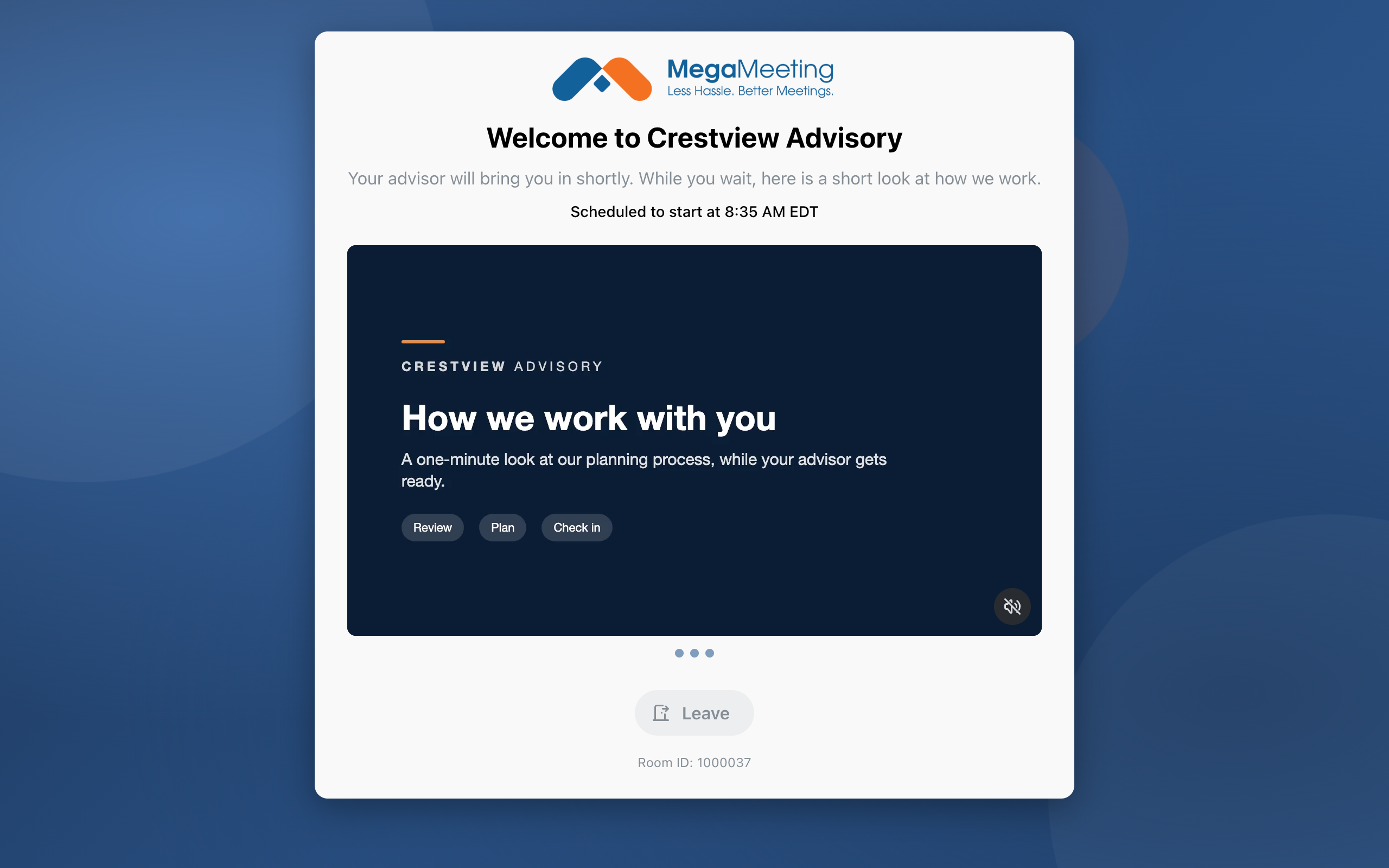
A guest waiting in a room that uses this template sees your heading, message, start time and videos over your background, with your logo at the top. A Leave button and the Room ID are always shown.
Everyone except hosts and co-hosts waits there until admitted, including people on the room's attendee list.
6. Choose the Screen for Each Room
Select a template and click Make Default to make it your default. Every room with a waiting room shows the default unless the room picks another.
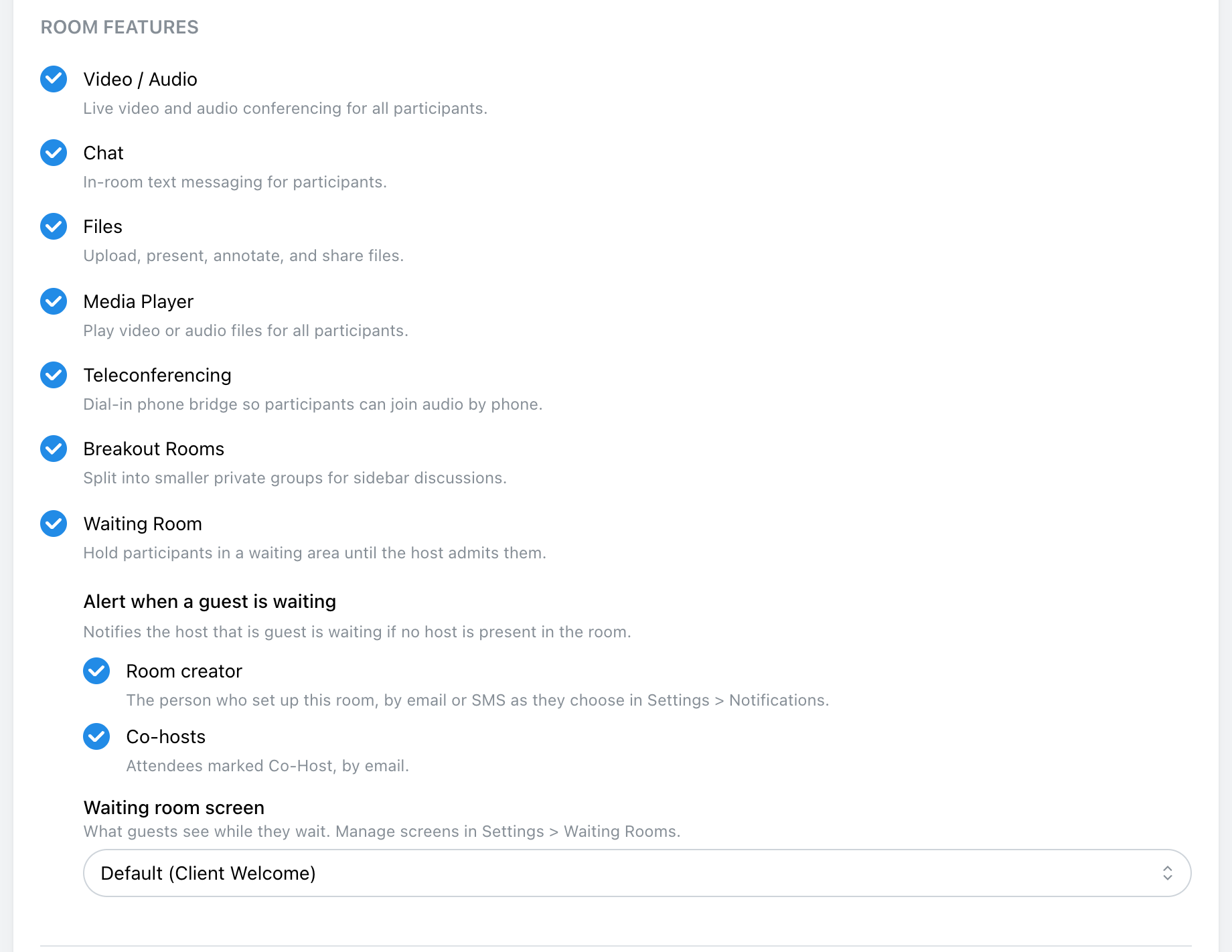
To pick one for a particular room, edit the room. With Waiting Room ticked under Room Features, Waiting room screen offers:
- Default (with your default's name in brackets): follows whichever template is your default when the guest arrives.
- Any of your templates by name.
- Standard: the built-in screen.
Room templates have the same setting, so a template for client meetings can bring its own waiting room screen with it.
7. Let People In
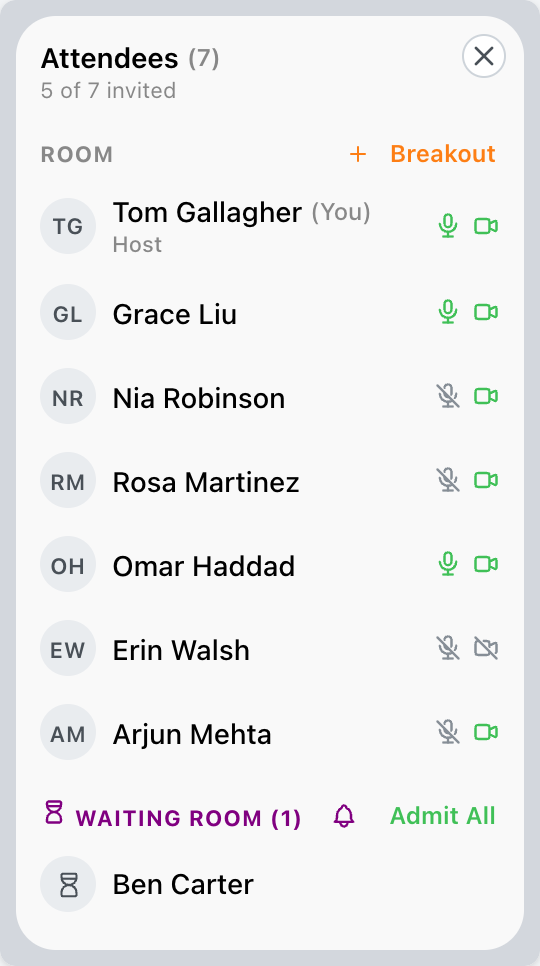
In the room, waiting guests are listed under Waiting Room at the bottom of the attendee list. Click a name for Admit to Room or Reject, or use Admit All. The bell beside it turns the arrival sound on and off. More on this in How to Host a Meeting.
8. Get an Alert When Nobody Is There to Let Them In
If guests are waiting and no host or co-host is in the room, MegaMeeting can alert you after about a minute. The alert names who is waiting and the room, and is sent once, not over and over.
Who is alerted is set on each room (and on room templates), under Alert when a guest is waiting below the Waiting Room setting:
- Room creator: the person who set up the room, by email or SMS, as they choose below. Their alert links to MegaMeeting, to start the room from the Rooms list as usual.
- Co-hosts: attendees marked Co-Host, by email. Their alert links straight to the room.
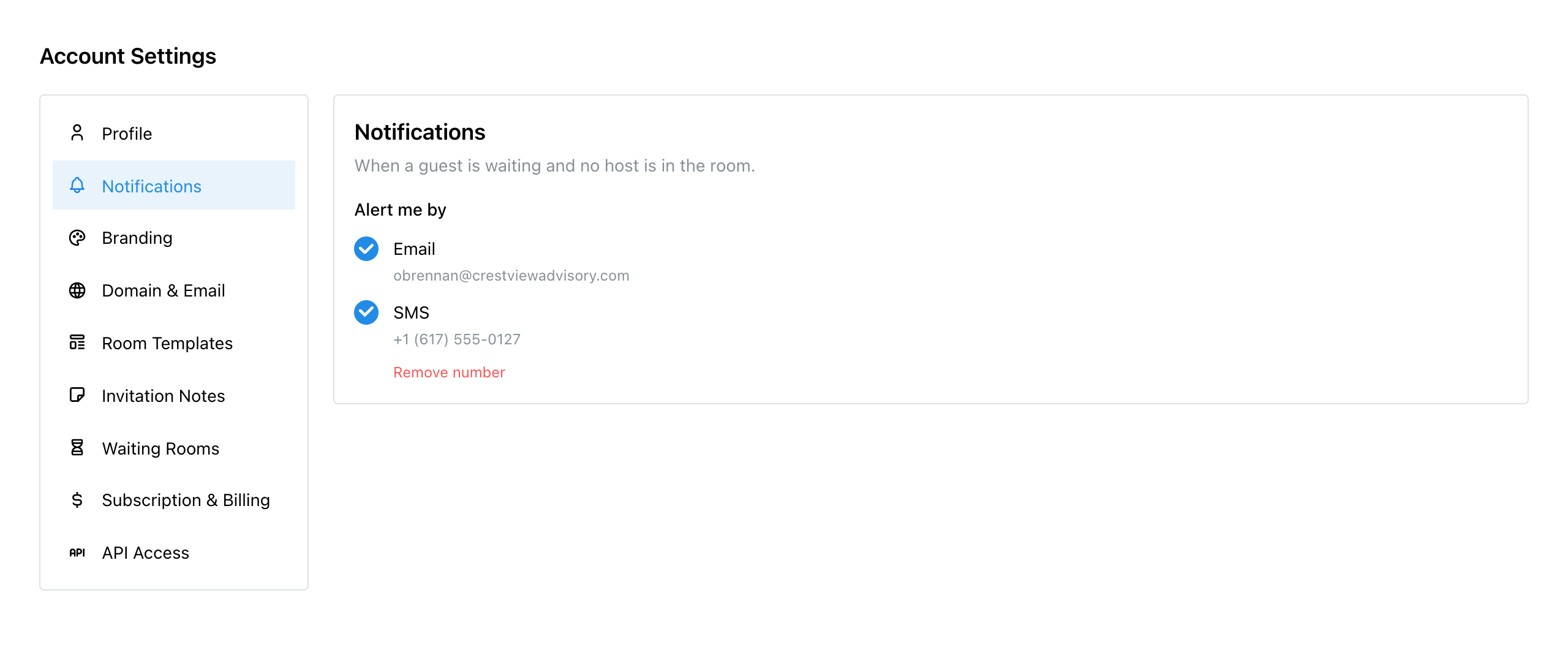
How you are alerted is your own choice, in Settings, under Email & Phone. Everyone who signs in to the account sets their own. The Email card shows your sign-in email, which always gets your sign-in codes. Turn on Waiting room alerts there to be alerted by email.
To be alerted by text, add a number on the Mobile card. Until you do, its switches say "Add a number first". Click Add Mobile Number, pick your country if it is not the US (you can search the list), and type your number. Click Send Code, enter the 6-digit code that arrives by text, and click Verify. If the code does not come, Resend Code and Change Number are below the code box.
Once verified, the number shows a Verified badge. Turn on Waiting room alerts on the Mobile card to get texts. The Sign-in codes switch beside it lets you pick SMS Code when you sign in. Change swaps in a new number, and Remove stops the texts.
Checklist
- Is one template set as your default?
- Do the heading and message read well in the preview?
- Are your videos uploaded as MP4s, in the order you want?
- Do the rooms that need a different screen have it chosen?
- Is a host or co-host going to be there to let people in?
- Is Settings, Email & Phone set to alert you the way you want?
Explore MegaMeeting