
How to Present in a Meeting
Four ways to show something to everyone in the room.
A MegaMeeting room gives you four ways to show something:
- Share Screen: anything on your computer, live.
- Files: documents you upload, shown page by page, with markup.
- Whiteboard: a blank page to draw on together.
- Media Player: a video or audio file played for everyone at once.
The room needs Files and Media Player turned on in its features (see How to Create a Meeting Room).
1. Share Your Screen
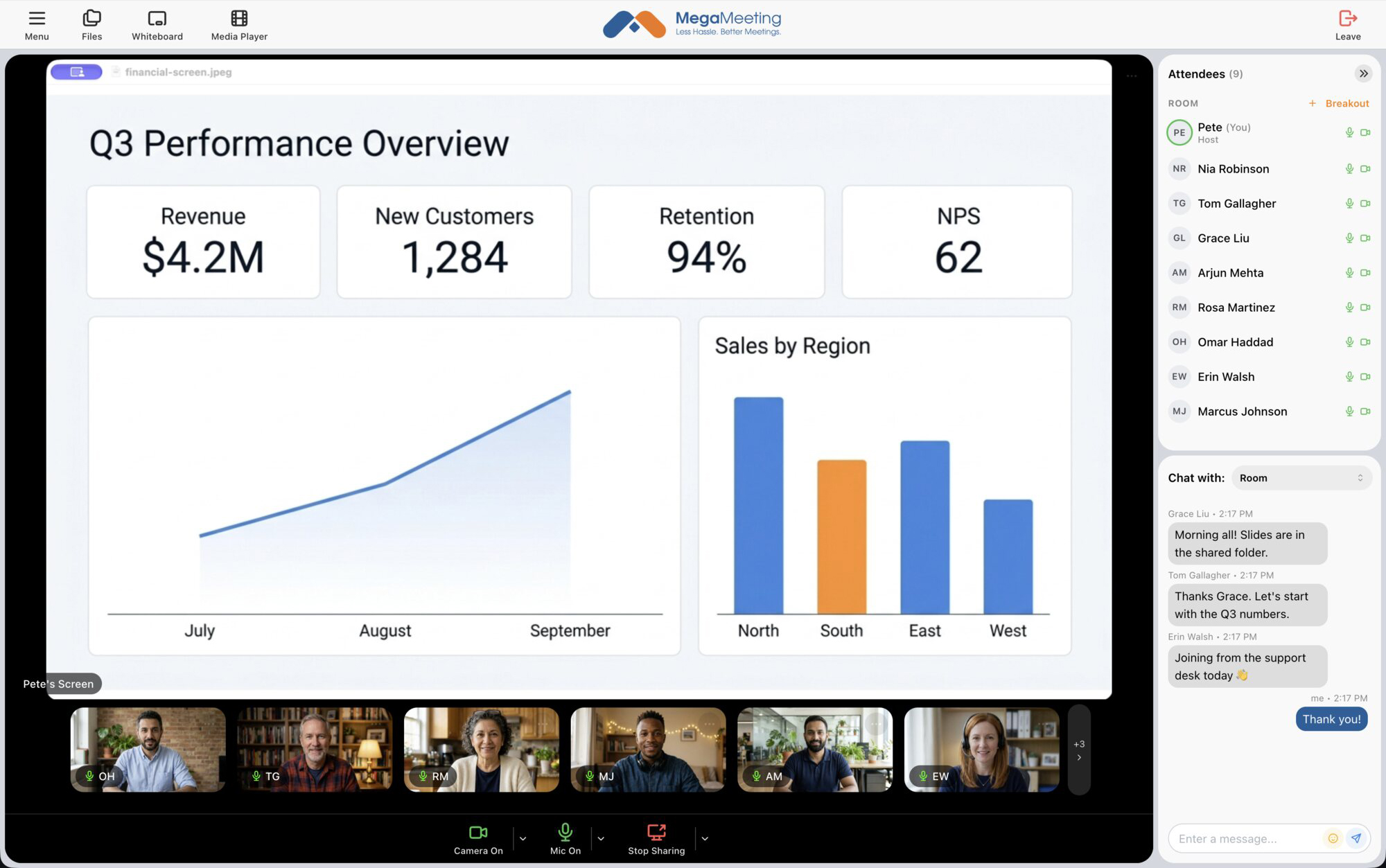
Click Share Screen and choose the screen, window or browser tab to share. Everyone sees it in the middle of the room, labeled with your name. Click Stop Sharing when you are done.
Hosts and people on the room's attendee list share without asking; anyone else asks a host first (see How to Host a Meeting).
2. Open Files
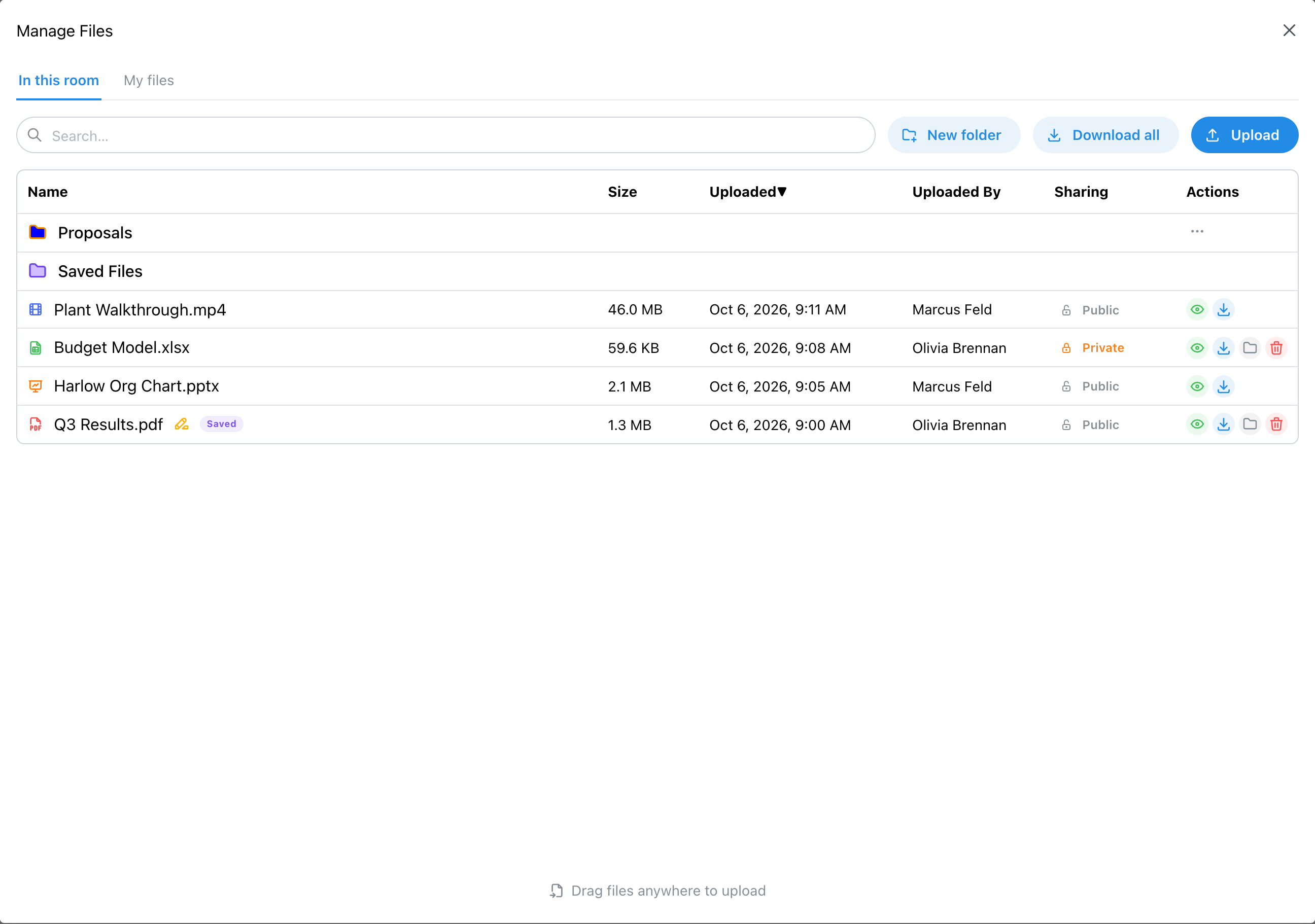
Click Files in the room header to open Manage Files. In this room lists the room's files and folders; you can search them, make a New folder, or use Download all to take everything as one zip file. Each file shows who uploaded it and whether it is shared, and its actions let you open, download, move or delete it.
My files holds the files you have uploaded before, in any room, so a document you use often only needs uploading once.
Hosts can always use Files. Attendees can when their entry on the attendee list allows them to upload and download files.
3. Upload Files
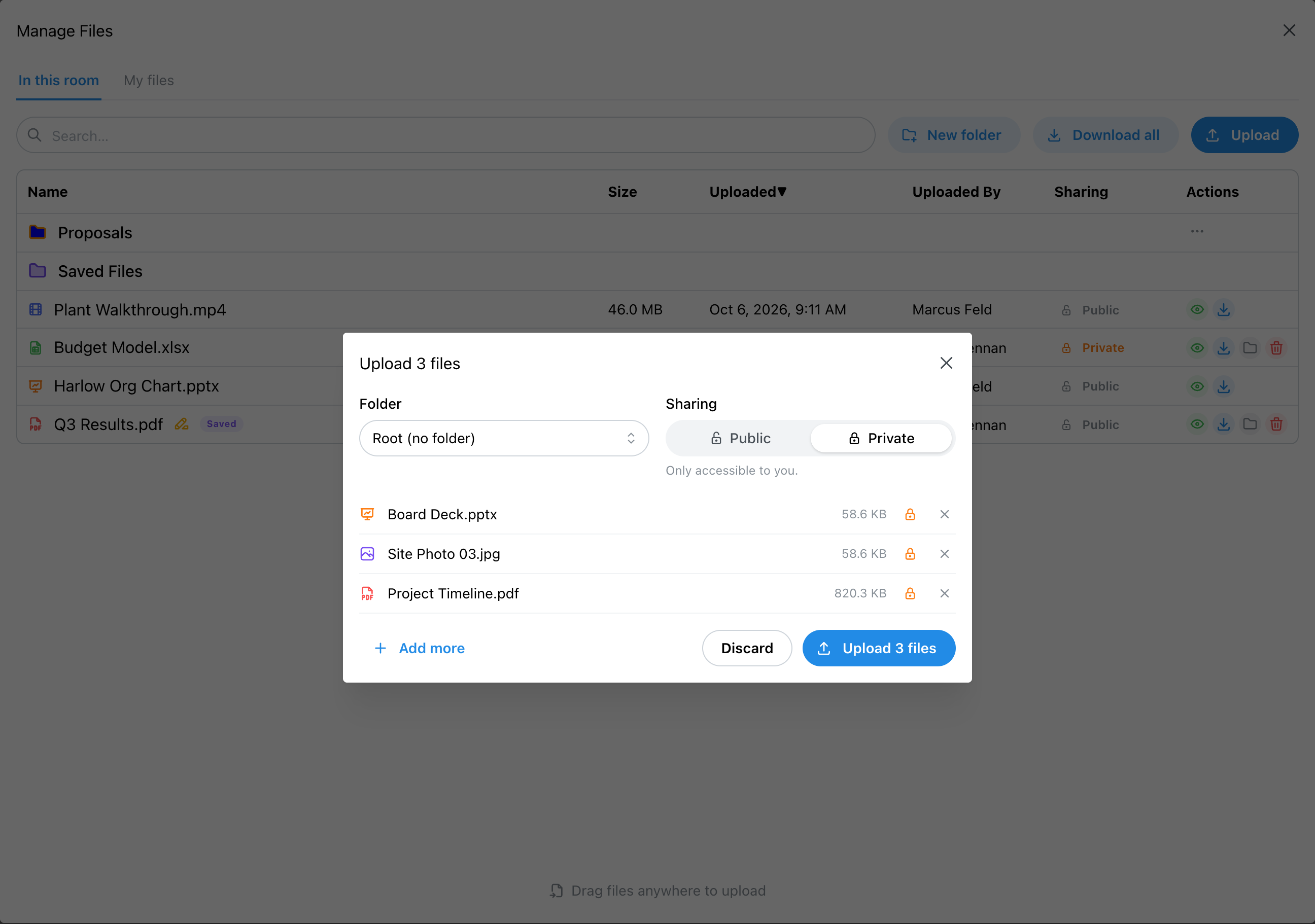
Click Upload, or drag files anywhere onto the window. In the upload window, choose a Folder and the Sharing, remove a file with its X or use Add more, then click Upload.
- Private: only you can see the file. New uploads start here.
- Public: everyone in the room can see and open it.
PDFs, images, Word, PowerPoint and Excel files, CSV and text files, and video and audio files can all be uploaded. Sharing can be changed later.
4. Present a File
Open a file from the list. At first only you see it, so you can find the right page. Then click Start Presentation: everyone sees the file, and follows as you turn pages, rotate, scroll, zoom and mark it up. Each person sees the part of the page you are looking at, sized to fit their own screen; someone who scrolls or zooms away is shown Back to presenter's view. Others see [your name] is presenting. Click Stop Presentation to finish.
Hosts, and attendees allowed to upload and download files, can present.
5. Mark Up as You Go
The toolbar above the file has:
- Pages, zoom and rotate, and full screen.
- Freehand draw and Highlight box, with the Stroke color and Stroke thickness (Thin to Extra; pen and shapes start on Medium).
- Shapes: a line, an arrow, a two-headed arrow, a rectangle, an ellipse, a circle, a check mark or an X. Hold Shift while drawing a line or arrow to keep it level, upright or at 45 degrees.
- Focus on selection: draw a box around part of the page to enlarge it. While you are presenting, everyone sees the enlarged area.
- Undo and Clear annotations on this page. Your Clear removes your own marks; the host, or the presenter while presenting, clears everyone's, and Undo right after brings them back.
Click a tool to pick it up, and click it again (or press Escape) to put it down. With no tool picked up, drag one of your marks to move it, or click it to select it. A selected mark has handles for resizing it and a delete button just above its top right corner. With a tool picked up, a click on one of your marks selects it and a drag draws a new mark. A shape you have just drawn stays selected, so you can move or resize it straight away.
Your markings are saved as you go; files with saved markings show Saved in the list. While presenting, Permissions lets you choose who else may mark up the file.

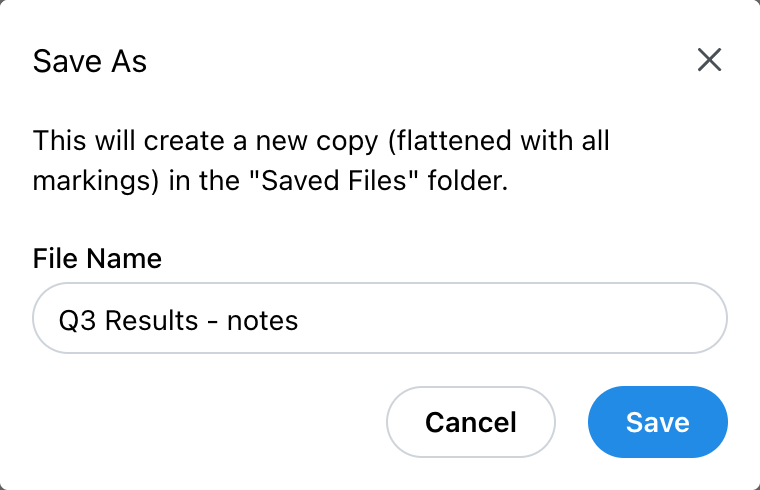
To keep a copy with the markings, click Save As. It creates a new copy with the markings flattened into it, in the Saved Files folder, and leaves the original untouched.
6. Use the Whiteboard
Click Whiteboard to open a blank white page in the same viewer as files, with the same tools, plus a background color. Start a presentation to show it to everyone, and use Permissions to let others draw too.
7. Play Video or Audio for Everyone
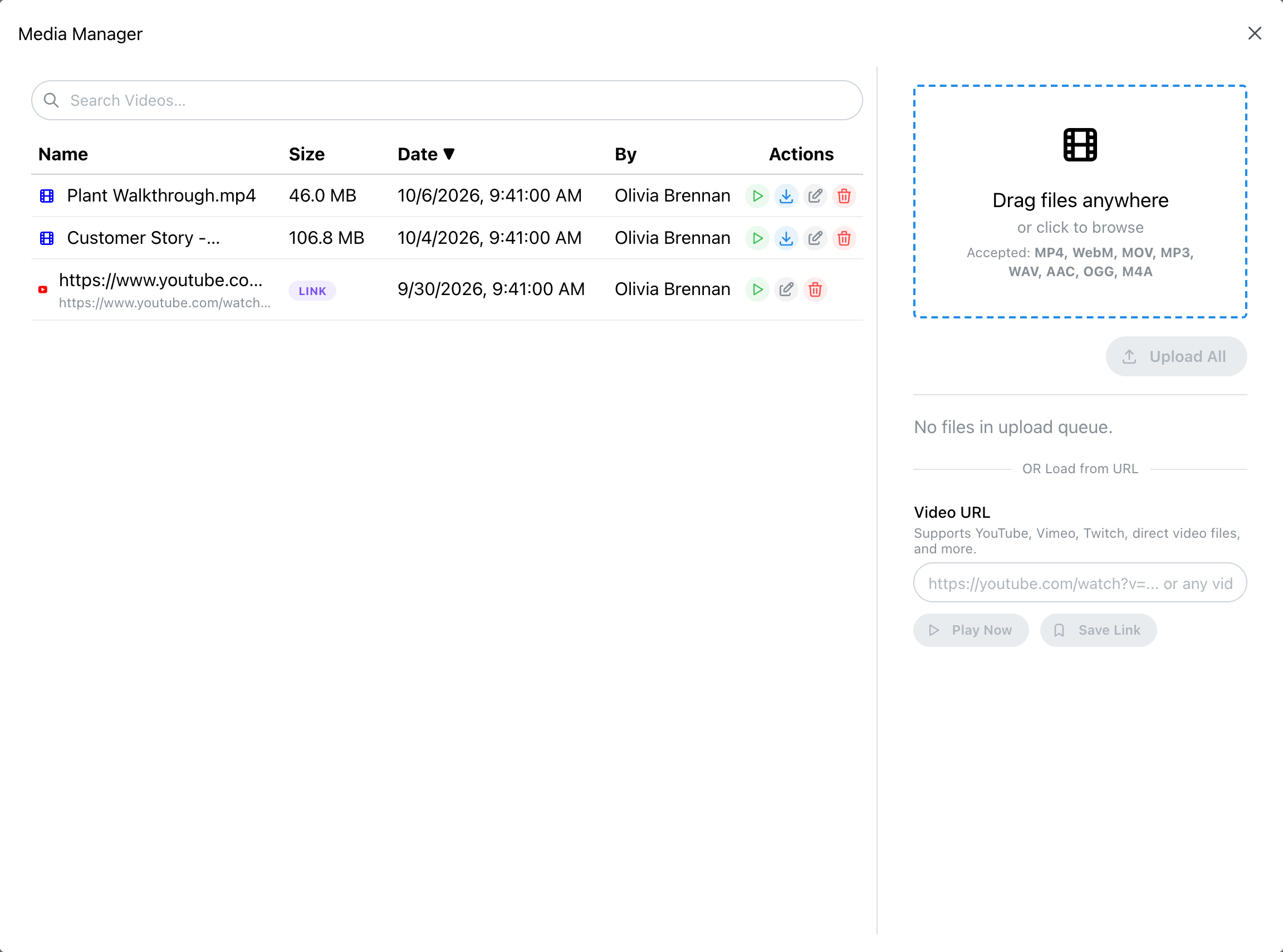
Click Media Player to open the Media Manager:
- Upload: drag files onto it or click to browse, then Upload All. MP4, WebM, MOV, MP3, WAV, AAC, OGG and M4A all work.
- Load from URL: paste a YouTube, Vimeo or Twitch link, or the address of a video file. Play Now plays it straight away; Save Link keeps it in the list for later.
- The list: play, download, rename or delete anything uploaded to the room.
Playing something opens the player for everyone at once, and keeps them in step. The person who started it controls play, pause and position; everyone else sees Presenter controlling... and can turn their own sound off. Close Presentation ends it.
Explore MegaMeeting