
How to Run a Webinar
From the minutes before you start to the end of the broadcast.
This guide covers running a webinar from inside the room. Setting one up, including registration and the welcome image, is covered in How to Create a Webinar Room. Most host controls (the menu, the attendee card, co-hosts, locking the room) work as they do in a meeting; see How to Host a Meeting.
1. Before You Go Live
Join the room a few minutes early. You and your speakers are on camera together in the room, and can check sound, cameras and any slides you will share. Viewers who arrive now see your welcome image, with Waiting for host to start broadcasting... beneath it. Nothing that happens in the room reaches them until you go live.

2. Go Live
When you are ready, click Go Live in the room header. It reads Starting... for a moment, then End Broadcast. Within a few seconds, viewers' screens switch from the welcome image to the webinar.

Going live also records the webinar, in the layouts set on the room. There is no separate recording button in a webinar: the recording runs for as long as the broadcast does, and appears under Recordings afterwards. When the room has more than one layout, viewers can switch between them.
When the room has RTMP Streaming on with at least one RTMP URL, going live also streams the webinar to those destinations, such as YouTube or Twitch, for as long as the broadcast runs.
3. Speakers and Viewers in the Attendee List
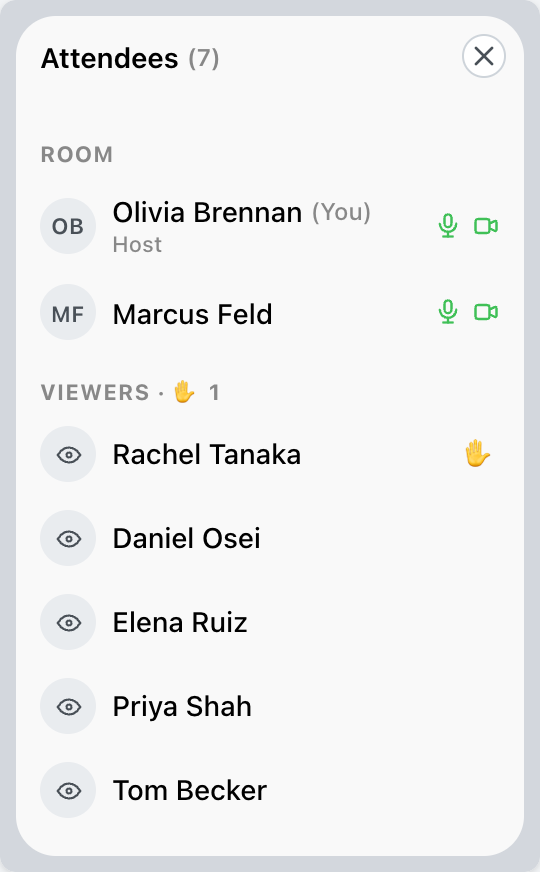
The attendee list shows the speakers under Room, with their microphone and camera, and everyone watching under Viewers. The count beside Attendees includes both.
4. Bring a Viewer on Camera, and Back
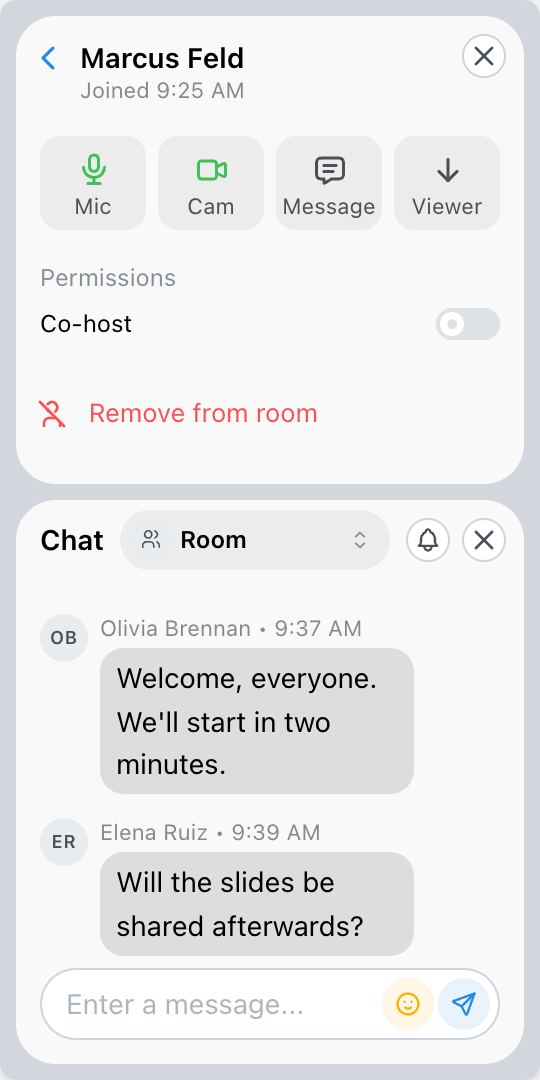
Click a viewer to open their card, and click Publisher to bring them on camera. They join the room with their camera and microphone, and the audience sees them in the broadcast. On a speaker's card, Viewer moves them back to watching. Co-hosts always stay on camera.
Viewers can also put a hand up from their own screen. A raised hand shows beside the viewer's name, raised hands move to the top of the Viewers list, and the Viewers heading shows how many are up. While a hand is up, the viewer's card shows Lower hand; click it once you have taken their question.
5. Chat with the Audience
With chat on, viewers can read the room chat and send private messages to the hosts. Answer in the room chat when the whole audience should see the answer, or with Message on someone's card to reply to them alone.
6. End the Broadcast
Click End Broadcast. The broadcast, the recording and any RTMP stream stop, and viewers see the welcome image again. The room stays open, so you and your speakers can talk before you leave.
To close the room for everyone, choose Leave and then End Meeting for All.

On the Day
- Have your speakers joined and checked their sound and camera?
- Is someone watching the chat?
- Did you click Go Live, and does the button now read End Broadcast?
- At the end, did you click End Broadcast before ending the meeting?
Explore MegaMeeting