
How to Use Room Templates and Invitation Notes
Save the settings and messages you use again and again.
Most meetings you run fall into a few kinds, and each kind uses the same settings and says the same things in its invitation. Two sections in Settings save you setting them up every time:
- Room Templates: saved room settings, applied when you create a room.
- Invitation Notes: saved messages, added to invitation emails.
1. Open Settings, Room Templates
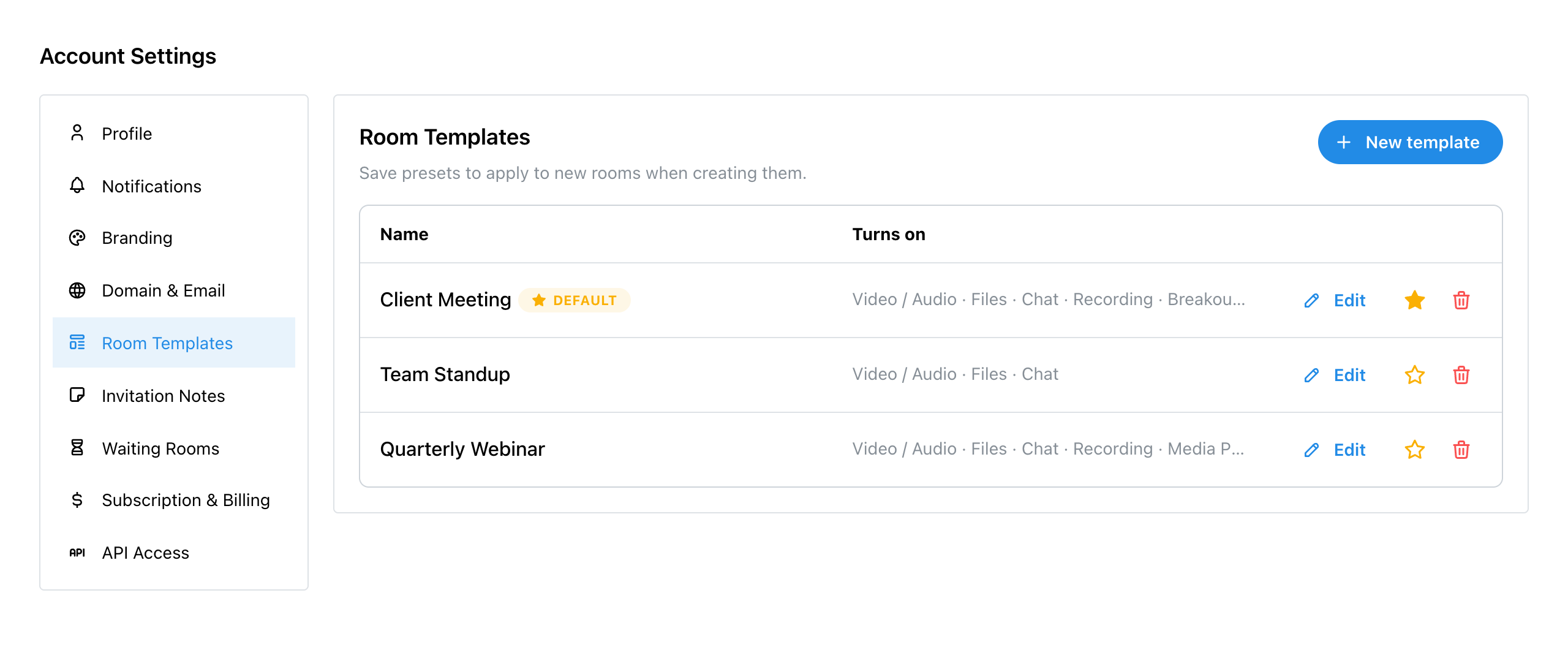
Click Settings in the sidebar, then Room Templates. Each template is listed with the features it turns on. Click a template to select it, then use the bar that appears at the bottom: Edit opens it, Make Default makes it your default (step 4), and Delete removes it. You can keep up to 10.
2. Create a Template
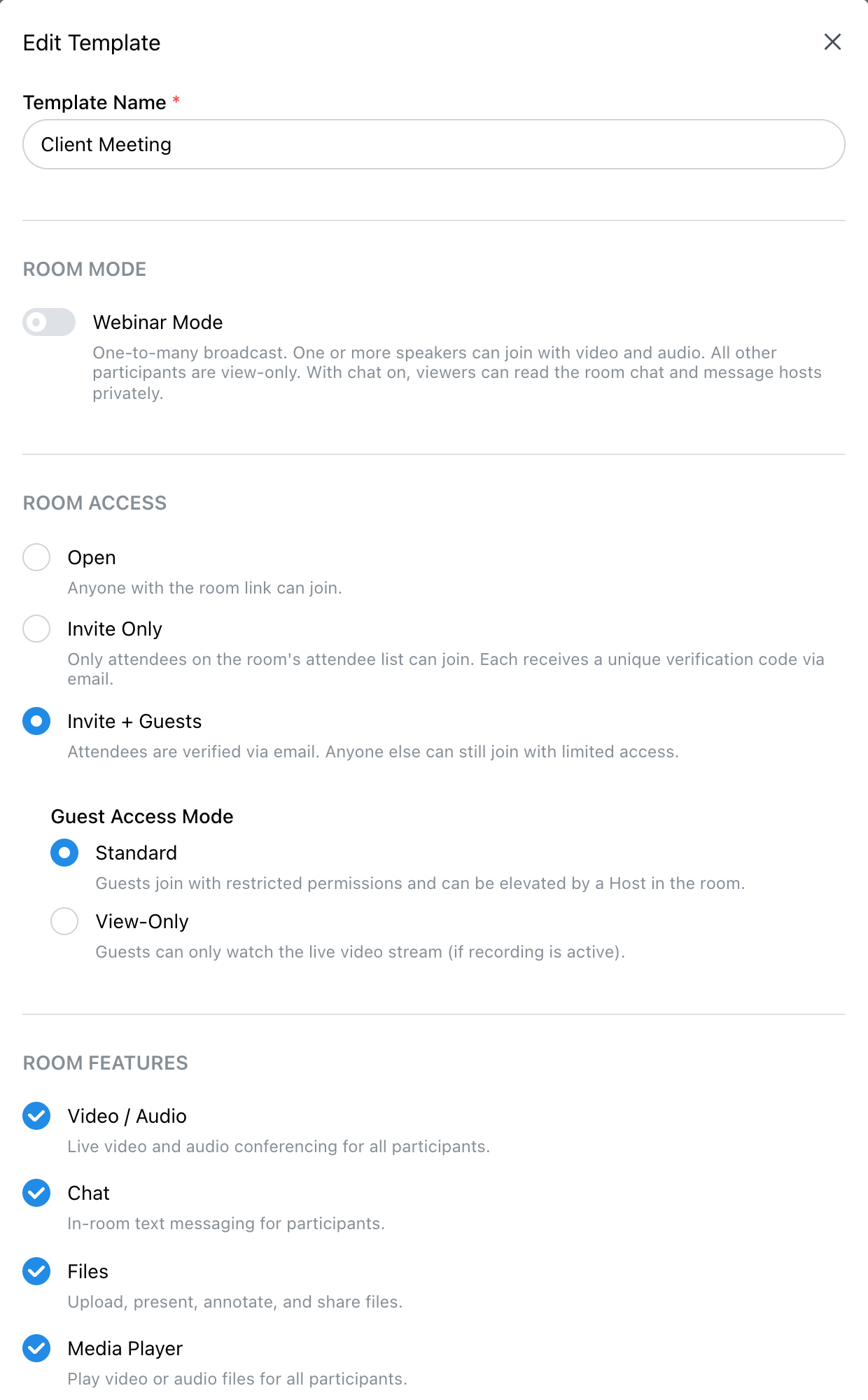
Click New Template and give it a Template Name you will recognize, such as “Client Meeting”. Below the name are the same settings as the room form:
- Room Mode: a meeting, or a webinar with Webinar Mode on.
- Room Access: Open, Invite Only or Invite + Guests, and the Guest Access Mode.
- Room Features: video, chat, files, the media player, teleconferencing, breakout rooms and the waiting room, with its alerts and screen.
- Recording & Streaming: recording, RTMP streaming, auto-record and the recording layouts.
- Session: the time limit, Lock Room and Entry Chime.
Each setting works as it does on a room; see How to Create a Meeting Room and How to Create a Webinar Room. Click Create Template to save it.
3. What a Template Leaves Out
A template holds only what is the same from one meeting to the next. It never holds:
- the room name;
- a date, time or schedule;
- an attendee list;
- a webinar's registration dates. A webinar template keeps the registration settings and form, but each webinar opens and closes registration on its own dates.
So one meeting's guests can never follow a template into the next meeting.
4. Apply a Template to a New Room
When you create a room, Room Template at the top of the form lists your templates. Choosing one fills in every setting it holds; then add the name, the schedule and the attendees, and change anything that is different this time. Clear it to go back to System Defaults.
Select a template in Settings and click Make Default to make it your default: it is chosen for you every time you create a room. Select it again and click Remove Default to clear it.
5. Save Invitation Notes
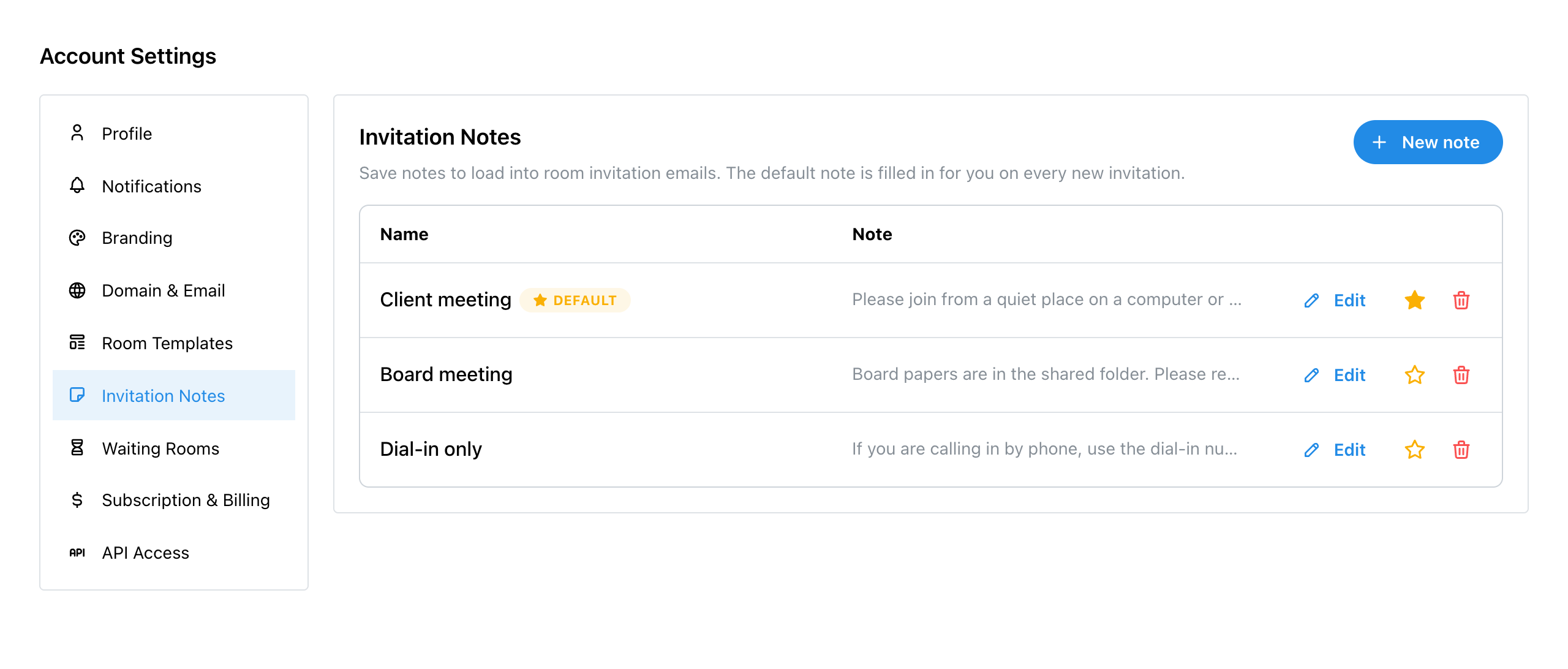
An invitation note is the message that goes with an invitation email: how to prepare, what to have ready, who to call with a problem. Click Settings in the sidebar, then Invitation Notes, then New Note. Give it a Note Name, write the Note, and click Create Note. You can keep up to 20.
As with templates, select a note to Edit it, Make Default, or Delete it from the bar at the bottom.
6. Use a Note in an Invitation
In the invitation window, Saved Note lists your notes, and choosing one puts its text in the Note box. Your default note is already there when the window opens. Edit the text for this invitation if you need to; the saved note itself is not changed. Manage Saved Notes takes you to Settings.
Sending invitations is covered in How to Create a Meeting Room.
Checklist
- Is there a template for each kind of meeting you run?
- Is the one you use most set as your default?
- Does your default note say what every guest needs to know?
Explore MegaMeeting